We all know that working in front of a computer for extended periods of time without taking a break can be hazardous to your health. Most commonly, uninterrupted computer work is associated with neck strain, carpal tunnel, and back problems. Anyone who has worked 8 hours in front of a screen can tell you these aren’t the only maladies that can come from office work; no, they’re likely to tell you about the discomfort in their eyes as well.
While there are a few medical problems that can arise from focusing on a computer screen for too long, the one which encapsulates most of their symptoms, and incidentally the one which arises the most often is Computer Vision Syndrome (CVS). Simply put, CVS is the condition that results from focusing one’s eyes on a computer screen for protracted, uninterrupted periods of time.
Allowing CVS to go untreated can result in permanent damage to the eyes. This is why we at AskErgoWorks.com wanted to publish an article that would help familiarize our readers with the causes, symptoms, and prevention of Computer Vision Syndrome. The sooner you can recognize a potentially vision-threatening problem, the sooner you are able to address it.
Causes of Computer Vision Syndrome
* Low Contrast: This is not a new concept for most people. The pixilated nature of the objects on a computer screen engenders low contrast. This is especially true of text on computer screen. Studying objects of low contrast causes eye strain, which can lead to CVS.
* Prolonged Use: Most people work 8-9 hour days. Even if you take a 1 hour lunch break, this still leaves 3.5-4 hour periods during which you are staring at a computer screen. Extended viewing of a computer screen (over 2 hours), especially at a constant depth of field, is the primary cause of CVS.
* Reduced Eye Movement: During activities in which they are not focused on a computer screen, the average person blinks about 16 times per minute. While looking at a computer screen however, this drops to 6 times per minute. In addition, they eye moves through a lesser range of motion when concentrating on a screen. This reduction in eye movement serves to dehydrate the eye, which can, among other things, lead to CVS.
* Backlit Screens: Computer screens are “backlit”, meaning the light that illuminates the screen shines directly into your eyes. Most every other source of light we incur is first reflected off an object, entering our eyes at a lower amplitude. Staring at direct sources of light is hazardous, and can lead to CVS.
Symptoms of Computer Vision Syndrome
While the symptoms of CVS can vary, the most commonly observed indications include: eyestrain, dry or burning eyes, blurred vision, headaches, and double-vision.
*This list is not exhaustive, and NOT intended to diagnose any disorder. If you suspect you have CVS, see your doctor.*
Prevention of Computer Vision System
For as serious as some of the effects of CVS can be, prevention of the condition is surprisingly easy. If you work in front of a computer screen on a daily basis, take these simple steps to avoid CVS and other eye-related problems.
* Take a Break: Staring at a screen for an extended period of time is the leading cause of CVS. If you must work an entire day in front of the computer, make sure you take at least a 5 minute break every hour, and allow your eyes to relax. Looking out the window works great here.
* Increase the Contrast: Modern computers have display adjustments either on the screen, in the “control panel” of the operating system, or both. Using these controls to increase the contrast of your computer monitor can make looking at the screen much easier on your eyes.
* Blink: Making a conscious effort to blink more often while working at the computer will build a healthy habit sure to make your workday more comfortable. As you begin this exercise, use eye drops to help keep your eyes hydrated.
CVS can turn your otherwise enjoyable job into a nightmare. If you spend most of your workday in front of a computer, remember these helpful tips to recognize the symptoms of Computer Vision Syndrome, and prevent its onset.
Ambio Black
Tuesday, October 26, 2010


EDMONTON - Got forward head posture? Take the test.
Stand or sit with shoulders back and down, then turn your head until your nose sits over the middle of your shoulder. Can't do it? How about this one?
Stand straight with shoulders squared and eyes level, then ask your better half, one of the kids or a colleague to tell you if your ear is centred over the shoulder. If it isn't, you likely have forward head posture, another symptom of too many hours spent hunched forward, necks extended, in front of or over an electronic screen.
This was a common enough problem with TVs, computers, cell-phones, iPods and hand-held gaming devices around. But the advent of the smartphone has made it worse, says chiropractor Manjit Gauba (drgauba. com).
Gauba says many people now spend most of their waking hours in a forward head posture.
Adults in sedentary jobs who sit more than four to six hours a day typically have this problem, Gauba says, although in his practice, he's seeing patients as young as 12 with forward head posture.
Many people haven't heard of it and most usually don't even know they have it. But then one day someone will point it out to them, and suddenly they notice people walking around everywhere with heads bent forward, Gauba says.
"Most people don't know what good posture feels like because they've become used to the slouching posture they have," he explains.
It could be the cause of the headaches, neck pain and upper back tension you've been experiencing.
"Every inch that your head is misaligned forward puts an extra 10 to 20 pounds of stress on your neck and upper back to keep your chin up," he explains.
In severe cases, the posture can also affect breathing, decreasing respiratory capacity by as much as 30 per cent, according to one study. Other studies have linked it to poor mood, depression and decreased brain power.
When using devices that naturally cause shoulders to round forward and heads to extend, people need to be aware of their posture and try to correct it, says Gauba. For example, hold your smartphone higher when texting or browsing the net to reduce the degree to which your head is pitched forward.
Choosing to do nothing could eventually result in your spine remodelling itself permanently into head-forward posture, Gauba says.
The first thing he tells his patients is to start walking more -- outdoors or on a treadmill -- to get them up on their feet and away from a screen.
"I also actually suggest a media fast, tuning out the media for four to six weeks. You don't have to know everything, every minute," Gauba says.
Time away from screens allows muscles to loosen up so you can stand straighter. He then recommends strengthening and stretching exercises to maintain your newly straightened posture.
Sleeping on your back rather than on your side will also help properly align the spine, Gauba adds.
Following his advice, people usually see improvements in their posture within four to six weeks.
Here are three stretches and exercises Gauba recommends desk jockeys stand up to do every hour:
Air rowing
Stand straight with head up, shoulders back and down. Extend arms with elbows bent 90 degrees. Take a deep breath and slowly try to extend elbows back as far as possible, bringing shoulder blades together, keeping arms level with the floor. Hold for three to five seconds. Relax. Repeat three to five times.
Chin glides
Stand straight with shoulders back and down. Look straight ahead, keeping head and chin level. Place two fingers against the chin and gently push straight back as far as you can without feeling any pain. Hold three to five seconds and release. Repeat 10 times.
Elbow press behind the back
Clasp hands behind back. Take a deep breath and squeeze elbows together for 10 to 15 seconds. Relax. Repeat until you reach your flexibility limit.
Read more: http://www.edmontonjournal.com/technology/Posture+casualty+technology/3583824/story.html#ixzz13UYXNYuL
Stand straight with shoulders squared and eyes level, then ask your better half, one of the kids or a colleague to tell you if your ear is centred over the shoulder. If it isn't, you likely have forward head posture, another symptom of too many hours spent hunched forward, necks extended, in front of or over an electronic screen.
This was a common enough problem with TVs, computers, cell-phones, iPods and hand-held gaming devices around. But the advent of the smartphone has made it worse, says chiropractor Manjit Gauba (drgauba. com).
Gauba says many people now spend most of their waking hours in a forward head posture.
Adults in sedentary jobs who sit more than four to six hours a day typically have this problem, Gauba says, although in his practice, he's seeing patients as young as 12 with forward head posture.
Many people haven't heard of it and most usually don't even know they have it. But then one day someone will point it out to them, and suddenly they notice people walking around everywhere with heads bent forward, Gauba says.
"Most people don't know what good posture feels like because they've become used to the slouching posture they have," he explains.
It could be the cause of the headaches, neck pain and upper back tension you've been experiencing.
"Every inch that your head is misaligned forward puts an extra 10 to 20 pounds of stress on your neck and upper back to keep your chin up," he explains.
In severe cases, the posture can also affect breathing, decreasing respiratory capacity by as much as 30 per cent, according to one study. Other studies have linked it to poor mood, depression and decreased brain power.
When using devices that naturally cause shoulders to round forward and heads to extend, people need to be aware of their posture and try to correct it, says Gauba. For example, hold your smartphone higher when texting or browsing the net to reduce the degree to which your head is pitched forward.
Choosing to do nothing could eventually result in your spine remodelling itself permanently into head-forward posture, Gauba says.
The first thing he tells his patients is to start walking more -- outdoors or on a treadmill -- to get them up on their feet and away from a screen.
"I also actually suggest a media fast, tuning out the media for four to six weeks. You don't have to know everything, every minute," Gauba says.
Time away from screens allows muscles to loosen up so you can stand straighter. He then recommends strengthening and stretching exercises to maintain your newly straightened posture.
Sleeping on your back rather than on your side will also help properly align the spine, Gauba adds.
Following his advice, people usually see improvements in their posture within four to six weeks.
Here are three stretches and exercises Gauba recommends desk jockeys stand up to do every hour:
Air rowing
Stand straight with head up, shoulders back and down. Extend arms with elbows bent 90 degrees. Take a deep breath and slowly try to extend elbows back as far as possible, bringing shoulder blades together, keeping arms level with the floor. Hold for three to five seconds. Relax. Repeat three to five times.
Chin glides
Stand straight with shoulders back and down. Look straight ahead, keeping head and chin level. Place two fingers against the chin and gently push straight back as far as you can without feeling any pain. Hold three to five seconds and release. Repeat 10 times.
Elbow press behind the back
Clasp hands behind back. Take a deep breath and squeeze elbows together for 10 to 15 seconds. Relax. Repeat until you reach your flexibility limit.
Read more: http://www.edmontonjournal.com/technology/Posture+casualty+technology/3583824/story.html#ixzz13UYXNYuL
Ergonomic Office Chairs Improves Productivity
Your legs are cramped, your neck hurts and your arms are tingling. Why? The answer lies in your office chair. No doubt you are spending long hours in front of your computer screen, furiously typing, never taking a break. All of this, coupled with your badly designed chair, is heading you straight for a work-related injury. Your body will definitely appreciate ergonomically-designed RH Office Chairs.
What Is Ergonomics?
The American Heritage Dictionary says that ergonomics consists of the designing furniture that reduces fatigue, the chance of injury and pain. It is a way of arranging the office furniture that makes it easy for us to do our jobs.
Choosing An Office Chair
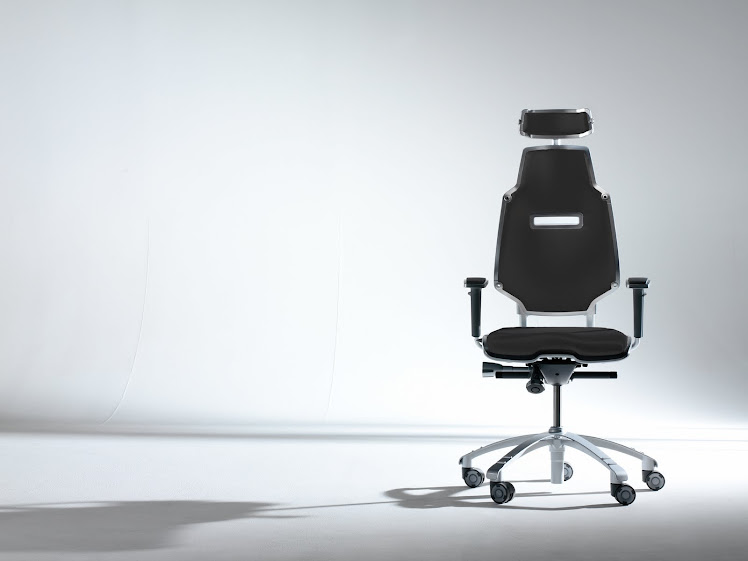
An ergonomic office chair is one of the most important pieces of furniture in the work station set-up. When selecting an ergonomic chair, the seat must be comfortable and fit your shape and size. It should not be too long, preventing you from bending your knees fully. The seat height should be adjustable to a height that allows you to keep your feet on the floor. The lower back support should be comfortable, the back rest should provide good support and if you need a chair with wheels, it should have a five-pedestal base. Arm rests should be cushioned, contoured, comfortable and preferably adjustable.
Stop And Stretch
In addition to having an ergonomic office chair, it is very important to take periodic breaks to give your body a chance to get up and move around. Stretch your arms and legs, exercise your hands by squeezing a ball, move your eyes up, down, and side to side. All of these exercises should be done every 30-60 minutes.
Prevent Injury
Ergonomic office chairs are essential for anyone that spends a great deal of time sitting at a desk or using a computer. Worker productivity will improve, injuries may be prevented and people will be able to work without pain.
When you are furnishing your office, a chair is an important piece of furniture. Take advantage of the many styles and designs from RH to make your job of hunting for a chair simple.
What Is Ergonomics?
The American Heritage Dictionary says that ergonomics consists of the designing furniture that reduces fatigue, the chance of injury and pain. It is a way of arranging the office furniture that makes it easy for us to do our jobs.
Choosing An Office Chair
An ergonomic office chair is one of the most important pieces of furniture in the work station set-up. When selecting an ergonomic chair, the seat must be comfortable and fit your shape and size. It should not be too long, preventing you from bending your knees fully. The seat height should be adjustable to a height that allows you to keep your feet on the floor. The lower back support should be comfortable, the back rest should provide good support and if you need a chair with wheels, it should have a five-pedestal base. Arm rests should be cushioned, contoured, comfortable and preferably adjustable.
Stop And Stretch
In addition to having an ergonomic office chair, it is very important to take periodic breaks to give your body a chance to get up and move around. Stretch your arms and legs, exercise your hands by squeezing a ball, move your eyes up, down, and side to side. All of these exercises should be done every 30-60 minutes.
Prevent Injury
Ergonomic office chairs are essential for anyone that spends a great deal of time sitting at a desk or using a computer. Worker productivity will improve, injuries may be prevented and people will be able to work without pain.
When you are furnishing your office, a chair is an important piece of furniture. Take advantage of the many styles and designs from RH to make your job of hunting for a chair simple.
Tuesday, September 21, 2010
No to Drugs - Pain Relief Tips in a Techie World
Mor tips on being comfortable while typing ...
Have you heard of Repetitive Strain Injuries or RSI? If you have experienced wrist pain, shoulder pain, neck pain or back pain due to repetitive tasks, more likely you had an episode of RSI.
Carpal Tunnel Syndrome, a repetitive strain injury among techies has become a byword for wrist pain or numbness of the hand. Repetitive tasks using keyboard and mouse that are not ergonomically designed to support the wrist or hand can damage the median nerve that connects the hand to the forearm. This is often accompanied by pain.
How can this be prevented? What can deliver permanent stress relief? Here are some tips:
1. Go Ergonomics!
Choose an Ergonomic Chair, Keyboard, Mouse and other Ergonomic Accessories.
Repetitive Strain Injuries are common among those who perform repetitive tasks using equipments that are not designed for such tasks, such as ordinary keyboards that do not cushion wrists or hands for long hours of work, including office desks and chairs that do not provide adequate lumbar support.
2. Maintain a Peaceful Work Environment.
Your work environment can affect your performance as well. Non-conducive work environment, such as noisy or cramped work spaces can trigger stress. Long exposure to this type of environment and office equipments that are not ergonomically-designed to fit the worker to his work produce strain on both body and mind, which over a period of time manifests into aches or pain that the worker may not easily comprehend. Left undiagnosed, RSI can cause downtimes and in an economy too volatile, no employee can afford to lose a job and employers would find it more expensive to train a new one.
3. Go Ergonomics (all the way!).
The science of Ergonomics introduces the importance of "fitting the tool to the worker."
There are many resources online that support the importance of providing employees with ergonomically-designed office equipments. Most employers who have read about ergonomics and what it can do to prevent RSI realized that cutting corners to beat the economic crisis should be done somewhere else and not on office tools that can prevent repetitive strain injuries.
It would prove mutually beneficial for both employers and their employees to use ergonomic office equipments rather than utilize those that may be cheaper at the onset, but would later prove more expensive due to lost hours on the job. Optimum performance at work can be achieved by eliminating pain and injuries that emanate from one-size-fits-all office equipments.
Are you experiencing pain on your wrist or neck? If yes, you could be suffering from carpal tunnel syndrome, which is classified as a repetitive strain injury. Do something about it. Seek medical attention first as there can be underlying causes that should be managed clinically. However, when symptoms recur, try to look into the realm of ergonomics. The result might just surprise you!"
Have you heard of Repetitive Strain Injuries or RSI? If you have experienced wrist pain, shoulder pain, neck pain or back pain due to repetitive tasks, more likely you had an episode of RSI.
Carpal Tunnel Syndrome, a repetitive strain injury among techies has become a byword for wrist pain or numbness of the hand. Repetitive tasks using keyboard and mouse that are not ergonomically designed to support the wrist or hand can damage the median nerve that connects the hand to the forearm. This is often accompanied by pain.
How can this be prevented? What can deliver permanent stress relief? Here are some tips:
1. Go Ergonomics!
Choose an Ergonomic Chair, Keyboard, Mouse and other Ergonomic Accessories.
Repetitive Strain Injuries are common among those who perform repetitive tasks using equipments that are not designed for such tasks, such as ordinary keyboards that do not cushion wrists or hands for long hours of work, including office desks and chairs that do not provide adequate lumbar support.
2. Maintain a Peaceful Work Environment.
Your work environment can affect your performance as well. Non-conducive work environment, such as noisy or cramped work spaces can trigger stress. Long exposure to this type of environment and office equipments that are not ergonomically-designed to fit the worker to his work produce strain on both body and mind, which over a period of time manifests into aches or pain that the worker may not easily comprehend. Left undiagnosed, RSI can cause downtimes and in an economy too volatile, no employee can afford to lose a job and employers would find it more expensive to train a new one.
3. Go Ergonomics (all the way!).
The science of Ergonomics introduces the importance of "fitting the tool to the worker."
There are many resources online that support the importance of providing employees with ergonomically-designed office equipments. Most employers who have read about ergonomics and what it can do to prevent RSI realized that cutting corners to beat the economic crisis should be done somewhere else and not on office tools that can prevent repetitive strain injuries.
It would prove mutually beneficial for both employers and their employees to use ergonomic office equipments rather than utilize those that may be cheaper at the onset, but would later prove more expensive due to lost hours on the job. Optimum performance at work can be achieved by eliminating pain and injuries that emanate from one-size-fits-all office equipments.
Are you experiencing pain on your wrist or neck? If yes, you could be suffering from carpal tunnel syndrome, which is classified as a repetitive strain injury. Do something about it. Seek medical attention first as there can be underlying causes that should be managed clinically. However, when symptoms recur, try to look into the realm of ergonomics. The result might just surprise you!"
Keyboard Trays and Ergonomics
The keyboard is the main interface between you and your computer. It is also the cause of most repetitive stress injuries resulting from computer use. Having the right ergonomic features in a keyboard tray is essential to your health and well being at a computer work station. A good keyboard tray can make a world of difference. A bad one can be worse than none at all.
Adjustable Height
The most important feature is the ability to adjust the height. Keyboard height is determined by your chair height (if sitting) and arm length. Being able to fine tune that and adjust it as you adjust your sitting position throughout the day is essential.
Keyboard Tilt
The keyboard needs to be held at a comfortable, negative angle that supports the natural wrist position. Typically this angle does not need to be changed often. Keyboard tilt does not need to be adjusted during subtle posture changes as the angle of your arms should remain relatively constant.
However, if your posture changes more dramatically during the day - say, from a slight forward tilt to a recline - then your keyboard tray should be easy to tilt.
Mouse House
The mouse should be placed next to and on the same level as the keyboard. Ideally it should be placed along the circular arc your lower arm makes when rotating from the keyboard to the side.
The keyboard tray should be able to accommodate the largest keyboard you are likely to use and the mouse on both the left and right side. There may come a time when mouse ambidexterity is needed.
The Rest Stop
Wrist / Palm rests are helpful during periods where your hands are inactive. There should be room for these as well if they are not already built in.
Slip & Slide
The ability to slide the keyboard tray in and out while still at operational height will allow you to scoot closer to or farther from the monitor to relieve eye strain while still maintaining an ergonomically sound setup.
Stability
Your keyboard tray should be rock solid. You do not want it to wobble or deflect when in use. A wobbly tray can be worse than just using the desktop or even your lap.
Simple trays mounted with drawer runners on both sides are stable but lack a number of these ergonomic benefits.
Adjustable mechanisms are typically center mounted and are more prone to deflection. Typically the cheaper the keyboard tray the worse the wobble.
Adjustable Height
The most important feature is the ability to adjust the height. Keyboard height is determined by your chair height (if sitting) and arm length. Being able to fine tune that and adjust it as you adjust your sitting position throughout the day is essential.
Keyboard Tilt
The keyboard needs to be held at a comfortable, negative angle that supports the natural wrist position. Typically this angle does not need to be changed often. Keyboard tilt does not need to be adjusted during subtle posture changes as the angle of your arms should remain relatively constant.
However, if your posture changes more dramatically during the day - say, from a slight forward tilt to a recline - then your keyboard tray should be easy to tilt.
Mouse House
The mouse should be placed next to and on the same level as the keyboard. Ideally it should be placed along the circular arc your lower arm makes when rotating from the keyboard to the side.
The keyboard tray should be able to accommodate the largest keyboard you are likely to use and the mouse on both the left and right side. There may come a time when mouse ambidexterity is needed.
The Rest Stop
Wrist / Palm rests are helpful during periods where your hands are inactive. There should be room for these as well if they are not already built in.
Slip & Slide
The ability to slide the keyboard tray in and out while still at operational height will allow you to scoot closer to or farther from the monitor to relieve eye strain while still maintaining an ergonomically sound setup.
Stability
Your keyboard tray should be rock solid. You do not want it to wobble or deflect when in use. A wobbly tray can be worse than just using the desktop or even your lap.
Simple trays mounted with drawer runners on both sides are stable but lack a number of these ergonomic benefits.
Adjustable mechanisms are typically center mounted and are more prone to deflection. Typically the cheaper the keyboard tray the worse the wobble.
Friday, September 17, 2010
Workplace Wellness
Working at a computer work station all day can take a toll on the body. Repetitive activities and lack of mobility can contribute to aches, pains, and eventual injuries.
Sitting at a desk while using the keyboard for hours on a day to day basis can result in poor circulation to joints and muscles, it can also create an imbalance in strength and flexibility of certain muscles, and muscle strain. These issues can be easily remedied by taking frequent short breaks, or “micro breaks,” throughout your day.
* Get out of your chair several times a day and move around—even for 30 seconds
* Roll your shoulders backwards
* Turn your head side to side
* Stretch out your forearms and your legs
Additionally, specific guidelines for your work station can help maximize your comfort and safety.
Your chair should have the following:
* Wheels (5 for better mobility)
* The ability to twist freely on its base
* Adjustable height
* Adjustable arm rests that will allow you to sit close to your desk
* Lumbar support
* Seat base that adjusts to a comfortable angle and allows you to sit up straight
The position of the keyboard is critical:
* The keyboard should be at a height that allows you to have your forearms slightly below a horizontal line—or your elbows at slightly more than a 90 degree angle.
* You should be able to slide your knees under the keyboard tray or desk.
* Avoid reaching for the keyboard by extending your arms or raising your shoulders.
* Try to avoid having the keyboard on top of your desk. That is too high for almost everyone—-unless you can raise your seat. The elbow angle is the best test of keyboard position.
The position of your computer monitor is important:
* The monitor should be directly in front of you.
* The top of the monitor should be at your eye level, and at a distance where you can see it clearly without squinting, or leaning forward or backward.
* If you need glasses for reading, you may need to have a special pair for use at your computer to avoid tipping your head backward to see through bi-focals or other types of reading glasses.
How can a physical therapist help?
Many physical therapists are experts at modifying work stations to increase efficiency and prevent or relieve pain. Additionally, if you are experiencing pain that isn’t relieved by modifications to your work station, you should see a physical therapist who can help develop a treatment plan to relieve your pain and improve your mobility.
Sitting at a desk while using the keyboard for hours on a day to day basis can result in poor circulation to joints and muscles, it can also create an imbalance in strength and flexibility of certain muscles, and muscle strain. These issues can be easily remedied by taking frequent short breaks, or “micro breaks,” throughout your day.
* Get out of your chair several times a day and move around—even for 30 seconds
* Roll your shoulders backwards
* Turn your head side to side
* Stretch out your forearms and your legs
Additionally, specific guidelines for your work station can help maximize your comfort and safety.
Your chair should have the following:
* Wheels (5 for better mobility)
* The ability to twist freely on its base
* Adjustable height
* Adjustable arm rests that will allow you to sit close to your desk
* Lumbar support
* Seat base that adjusts to a comfortable angle and allows you to sit up straight
The position of the keyboard is critical:
* The keyboard should be at a height that allows you to have your forearms slightly below a horizontal line—or your elbows at slightly more than a 90 degree angle.
* You should be able to slide your knees under the keyboard tray or desk.
* Avoid reaching for the keyboard by extending your arms or raising your shoulders.
* Try to avoid having the keyboard on top of your desk. That is too high for almost everyone—-unless you can raise your seat. The elbow angle is the best test of keyboard position.
The position of your computer monitor is important:
* The monitor should be directly in front of you.
* The top of the monitor should be at your eye level, and at a distance where you can see it clearly without squinting, or leaning forward or backward.
* If you need glasses for reading, you may need to have a special pair for use at your computer to avoid tipping your head backward to see through bi-focals or other types of reading glasses.
How can a physical therapist help?
Many physical therapists are experts at modifying work stations to increase efficiency and prevent or relieve pain. Additionally, if you are experiencing pain that isn’t relieved by modifications to your work station, you should see a physical therapist who can help develop a treatment plan to relieve your pain and improve your mobility.
The High Cost of Ignoring Ergonomic Work Practices The economic bennefits of ergonomics ...
"As any company manager knows, it is important to weigh the costs of implementing new work programs with the expected long-term financial gains. Items labeled as being ergonomic can put a large dent into budgets. The business of ergonomics has become big business. A fully adjustable ergonomic chair alone can cost hundreds, if not thousands of dollars. Then there is the fear that if one work station is altered, every work station will need to be similarly altered. Or that by bringing up the topic of ergonomics, employees will be made aware of the potential for injuries and start making claims. It is not surprising that many companies do not look towards ergonomic solutions as a means of controlling costs.
On the other hand, not addressing ergonomic issues can be quite costly as well. According to the U.S. Department of Labor, the direct and indirect costs of musculoskeletal injuries can total as much as $20 billion dollars a year. A survey conducted by Liberty Mutual in August of 2001 revealed that 95% of respondents felt that workplace safety had a positive impact on a company's financial performance; 86% felt that workplace safety provided a return on investment; and 61% felt that $3 or more is saved for each $1 invested in workplace safety.
So, we know that ergonomic solutions can decrease the incidence and cost of injuries and enhance employee satisfaction. We can further maximize ergonomic investment by looking for no-to-low cost solutions. Here are a few basic ergonomic freebies to get you started.
Some solutions can be as simple as rearranging a work space, moving the work area higher or lower or closer, placing tools within easy reach, and keeping the working space directly in front of our bodies. Avoid excessive reach. Place most frequently used items within an easy reach envelope. Position furniture and work equipment to promote healthy posture.
The more repetitive your job tasks, the more you are at risk. Rotate tasks often. Get up and get moving: get a drink of water, make a phone call; take a walk to the copy or fax machine; walk down the hall to discuss an item with a co-worker rather than using email.
Ensure that tools are in good working order. If using sharp tools, make sure the blades are sharpened to reduce the exertion needed during use. Do not disengage any safety features."
On the other hand, not addressing ergonomic issues can be quite costly as well. According to the U.S. Department of Labor, the direct and indirect costs of musculoskeletal injuries can total as much as $20 billion dollars a year. A survey conducted by Liberty Mutual in August of 2001 revealed that 95% of respondents felt that workplace safety had a positive impact on a company's financial performance; 86% felt that workplace safety provided a return on investment; and 61% felt that $3 or more is saved for each $1 invested in workplace safety.
So, we know that ergonomic solutions can decrease the incidence and cost of injuries and enhance employee satisfaction. We can further maximize ergonomic investment by looking for no-to-low cost solutions. Here are a few basic ergonomic freebies to get you started.
Some solutions can be as simple as rearranging a work space, moving the work area higher or lower or closer, placing tools within easy reach, and keeping the working space directly in front of our bodies. Avoid excessive reach. Place most frequently used items within an easy reach envelope. Position furniture and work equipment to promote healthy posture.
The more repetitive your job tasks, the more you are at risk. Rotate tasks often. Get up and get moving: get a drink of water, make a phone call; take a walk to the copy or fax machine; walk down the hall to discuss an item with a co-worker rather than using email.
Ensure that tools are in good working order. If using sharp tools, make sure the blades are sharpened to reduce the exertion needed during use. Do not disengage any safety features."
Subscribe to:
Posts (Atom)